Showing posts with label Integration Services. Show all posts

Friday, March 23, 2012

Integration Services and Analysis Services missing in Management Studio


If you don’t see Integration Services and Analysis Services  in SQL Server Management Studio in “connecting to server” dialog box, there could be one of the two reasons listed below: 

1. You are using SLQ Server  Management Studio Express(SSMSE). If so, please note that you can’t use SSMSE to manage SQL Server Analysis Services, Integration Services, Notification Services, Reporting Services, SQL Server Agent, or SQL Server 2005 Mobile Edition.
2. You only have “Management Tools - Basic” installed. To be able to connect to other services(Integration Services, Analysis Services  etc), you’ll need to have “Management Tools - Complete”. Just run the installation file again and select the option shown in the screen shot below to resolve this.


Thursday, January 26, 2012

Unable to prepare the SSIS bulk insert for data insertion error


You might encounter this error if you have an SSIS package with SQL Server Destination component in the Data Flow task.

SQL Server Destination] Error: Unable to prepare the SSIS bulk insert for data insertion.
[SSIS.Pipeline] Error: component "SQL Server Destination" failed the pre-execute phase and returned error code 0xC0202071.

This error occurs if the SQL Server Destination component is trying to access a SQL Server Database on a remote server(You can’t use SQL Server destination to access a database on a remote server). To resolve this, either replace your SQL Server Destination component with OLE DB Destination component or run the package on the same machine as your SQL Server Destination.

What if you are on the on the same machine as your SQL Server Destination and you still get this error? Well, this could be due to User Account Control (UAC). You can try one of the options below to resolve this:

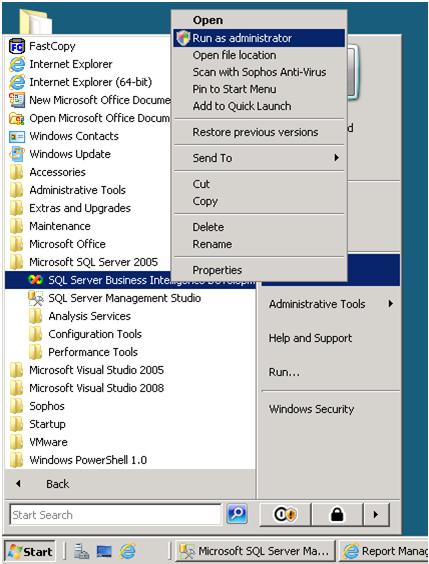
Solution 1: Launch the tool you are running the package from as Administrator. For example, if you are running the package in BIDS, go to Start > All Programs > SQL Server 2005 or SQL Server 2008, right-click Business Intelligence Development Studio and select “Run as administrator” as shown below.


Second solution: Grant "Create Global Objects" user right to the account you are using. Go to Start > Administrative Tools > Local Security Policy > User Rights Assignment > Create global objects and add the user account you are using and click ok. Please note that this account should not be a member of  the local Administrators group.

If you are on SQL Server 2008 R2 or later, the error would be: Unable to bulk copy data. You may need to run this package as an administrator.

Hope this helps!

Friday, September 30, 2011

Late Arriving Dimension Rows


Many a times when loading fact data, you may find that for a fact record, the corresponding dimension record is not available. To get around this, a new row is inserted into the dimension table with the surrogate key and natural key as a placeholder record. These placeholder records are known as late-arriving dimension rows.
Example: At my current work place, we process our facts everyday and dimensions once a week . Now guess what will happen when a new employee joins and starts working from the next day? Since we do our time entry on a daily basis, this new employee’s hours will show up in the fact table(WIP table) but the corresponding dimension record(employee name etc) will be missing.
To summarize, late arriving dimension rows are:
  • added during fact processing when the business key from the fact source doesn’t have a match in the dimension table
  • updated during dimension processing when the dimension record comes in from the source
SQL Server's Slowly changing Dimension Wizard refers to late-arriving dimension rows as Inferred Members. For more details on how to handle late-arriving dimension rows using SQL Server Integration Services(SSIS), please refer Slowly Changing Dimensions in Data Warehouse.

Wednesday, September 21, 2011

SSIS Error - The value violated the integrity constraints for the column


The error, as you can see below, doesn't say much about what is wrong, it is pretty generic and vague.

[OLE DB Destination [469]] Error: There was an error with input column "ColumnName" (578) on input "OLE DB Destination Input" (482). The column status returned was: "The value violated the integrity constraints for the column.".

The reason (most likely) the SSIS package failed is because(at least) one of the columns in your data source has NULL values and the corresponding column(s) in the destination is set to not allow NULL values. You can fix this by either modifying the destination table to allow NULL values or by setting up a default value for the source column that has NULL values.

Another reason for this error could be that the SSIS package is inserting duplicate values in a column on which a primary key constraint is set up (a primary key column doesn't allow duplicate values and doesn't allow NULLs).

Hope this helps.

SSIS TempStoragePath Error


[DTS.Pipeline] Error: The buffer manager cannot create a file to spool a long object on the directories named in the BLOBTempStoragePath property. Either an incorrect file name was provided, or there are no permissions.

This error usually occurs when BLOBTempStoragePath and BufferTempStoragePath properties(on Data Flow Task) refer to an invalid location. Verify that these folders exist under the path specified in the properties.